
A tour of Dieter
See headless agents across machines, a busy shared board, native terminals, screen sharing, and mobile conversations.
Run agents on an always-on Mac or headless Linux host. Follow their work from your laptop or phone. Closing a client does not stop the agent on another host; that execution host must stay powered on and awake.
These are real native captures from September 2026, using disposable projects and a mock agent. They illustrate the interface, not model quality or performance. The Mac set uses the Electric Blue design in dark appearance, with the conversation workspace side panel disabled. Open any image to inspect it at full size.
One board, work across machines
A board organizes tasks through Todo → Running → Review → Done. Each card keeps one durable conversation, its execution machine, and its workspace choice. Lane and agent status are separate: an idle agent can leave a card in Running until the work is ready for review.
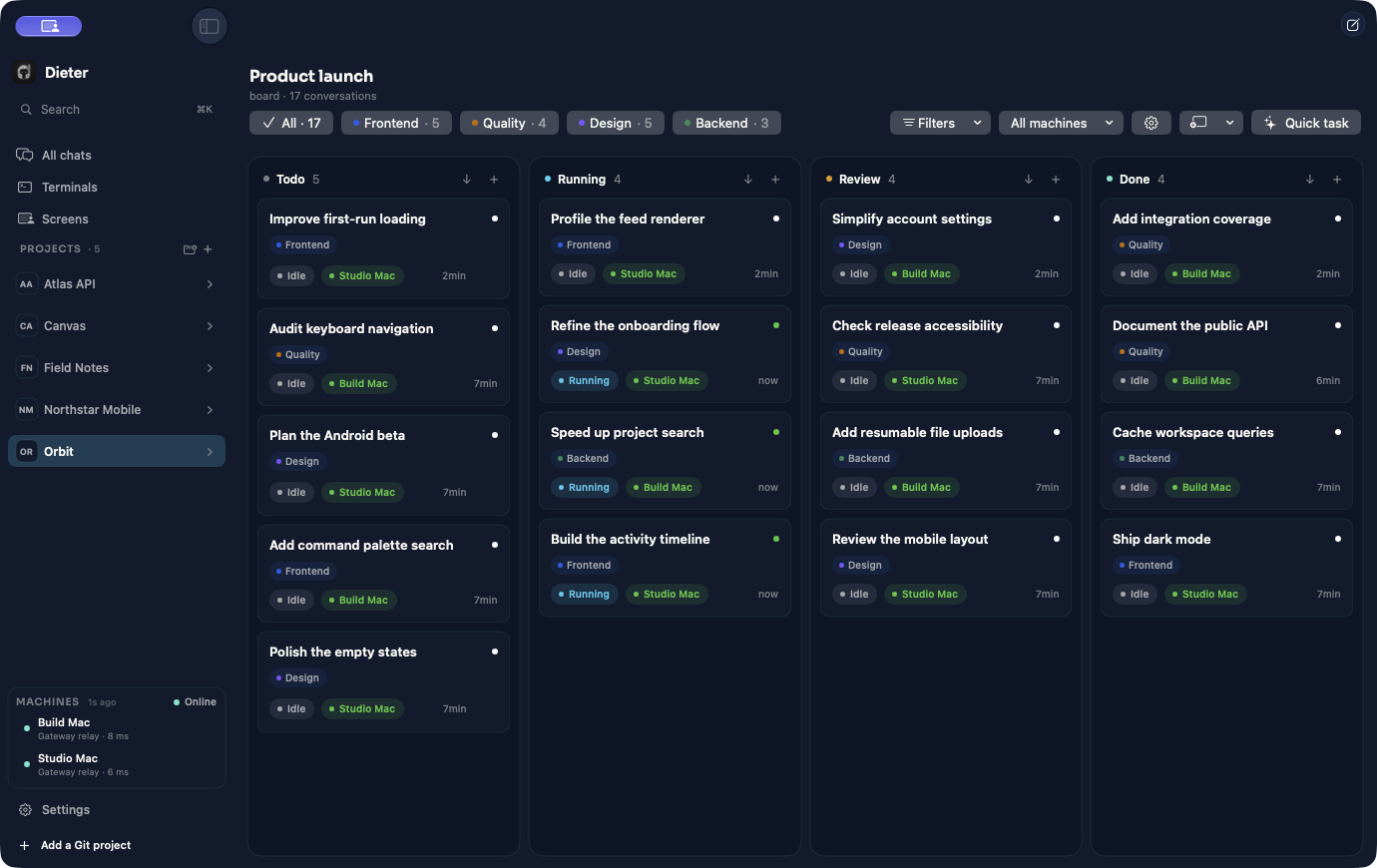
Studio Mac and Build Mac each have a checkout of the same shared Orbit project. Their cards appear together, with the execution owner visible on each card. The capture uses two isolated daemon identities on one physical Mac to exercise real ownership and routing without involving a production account.
Use Quick task to capture an idea or open a standalone chat for work that does not need a board card. Learn about projects, tasks, and worktrees →
Open a terminal on the host
Choose Terminals and the machine doing the work. Run an interactive shell, inspect the output, and reconnect later. Leaving the client does not close its host-owned terminal session.
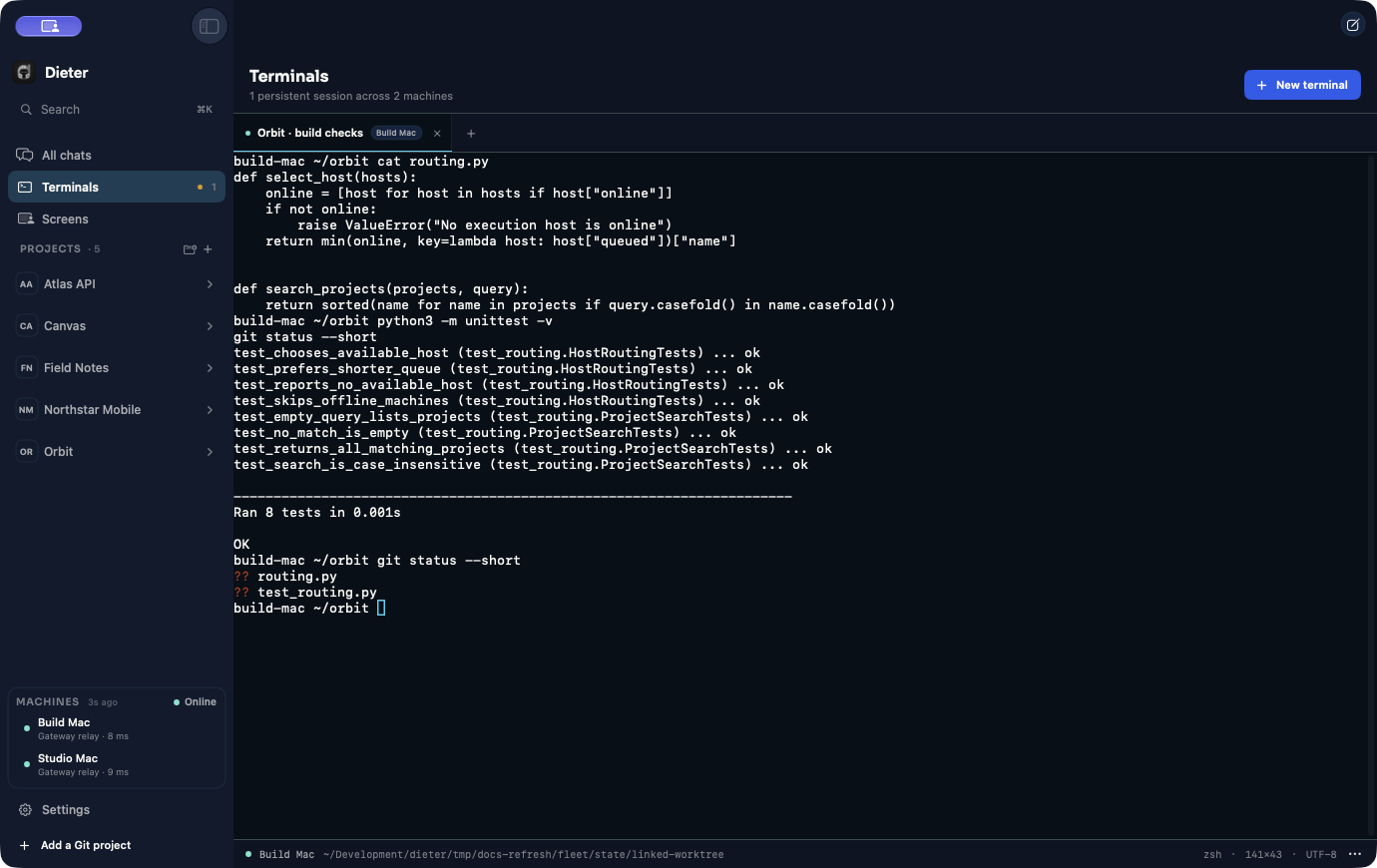
For unattended commands, registered background processes retain bounded stdout, stderr, and exit state. For recurring work, a schedule runs on its owning daemon. Understand processes, terminals, and schedules →
See the visual result
Agents and terminals work without a desktop. When a host does have an active graphical session, Screens lets you view it and take control from the native client. Media travels directly between peers or through TURN; the Dieter gateway handles signaling.
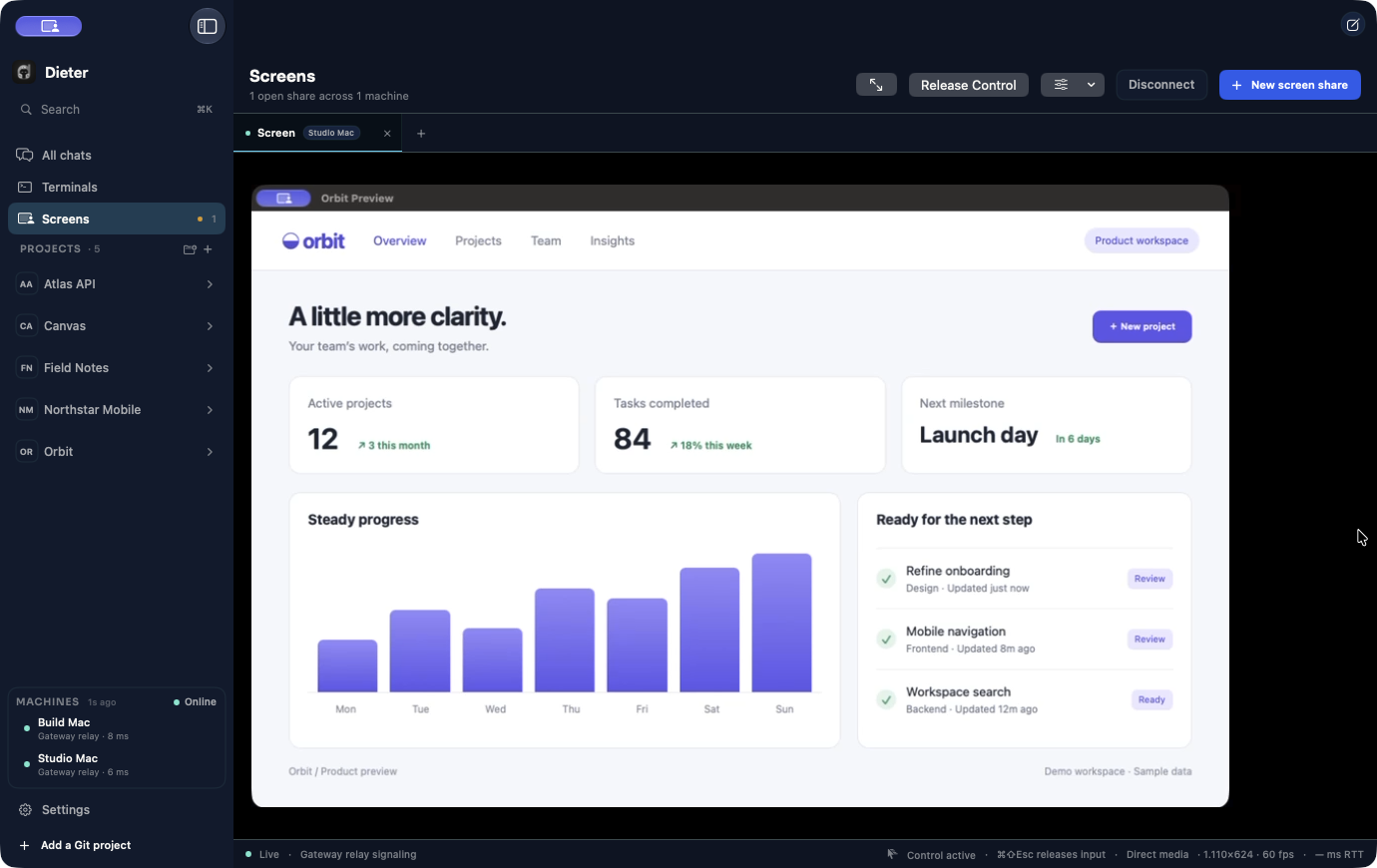
The sample dashboard is a disposable visual target, not another Dieter interface. Its sample metrics are not agent results. Use a remote screen →
Review files in their project
Open a project’s Files surface, choose its checkout, and read the actual file on that host. Markdown supports rich editing and source modes, revision-checked saves, and PDF/HTML export.
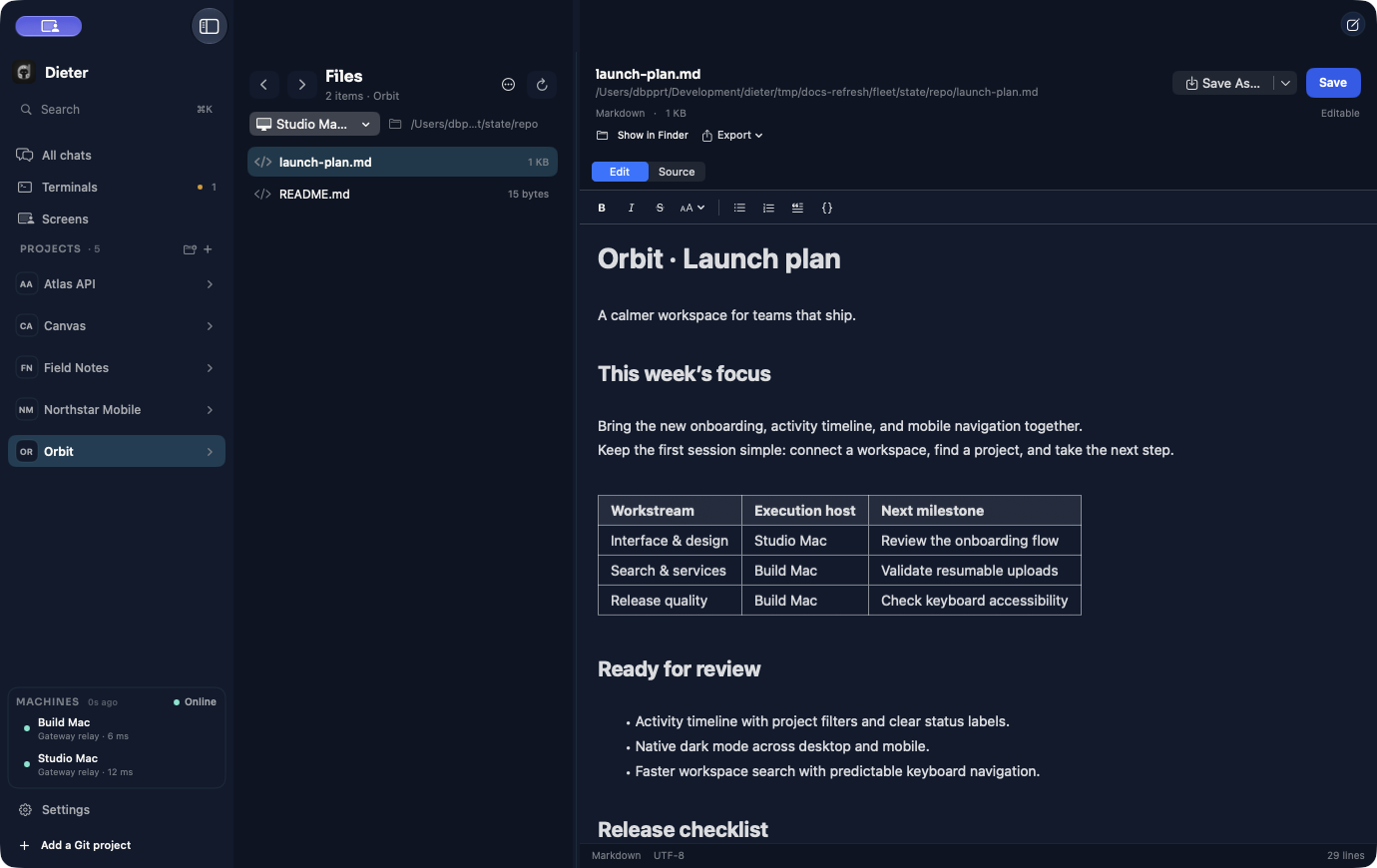
An optional experimental workspace panel can also keep files, previews, processes, and Git review beside a conversation. Explore files and the conversation workspace →
Check the machine behind a task
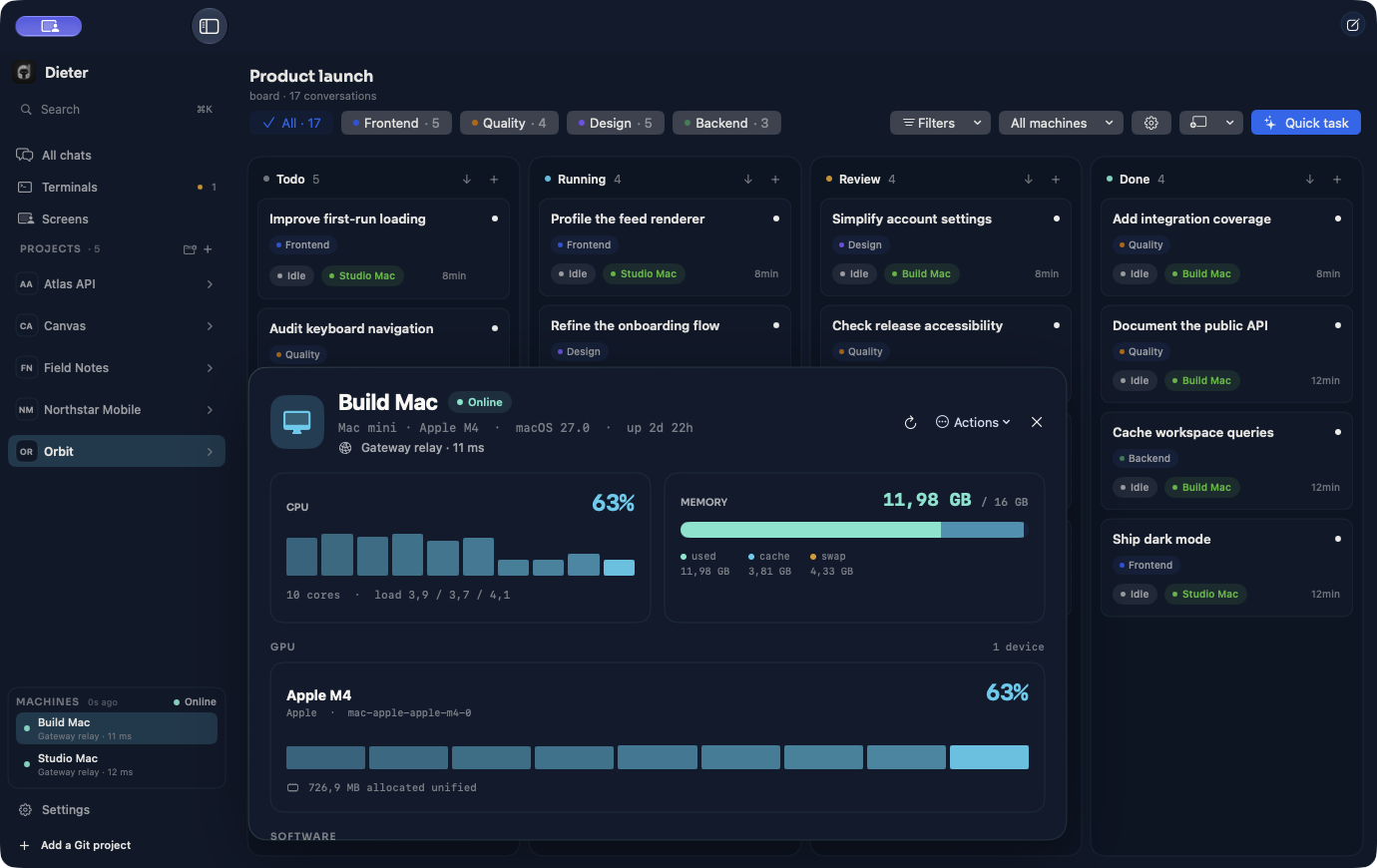
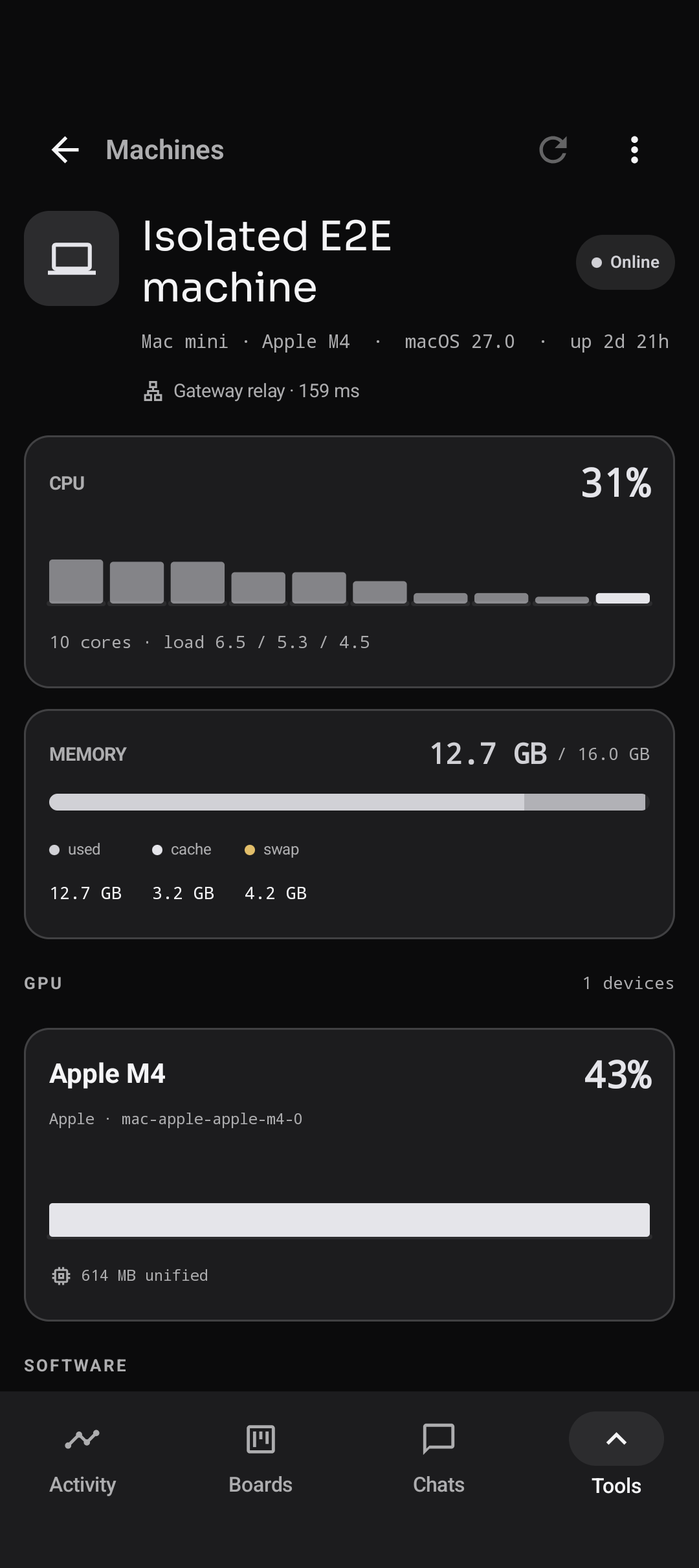
Open a machine in the Mac sidebar to inspect its availability, route, and live host telemetry without losing your board.
Pick up the thread on Android
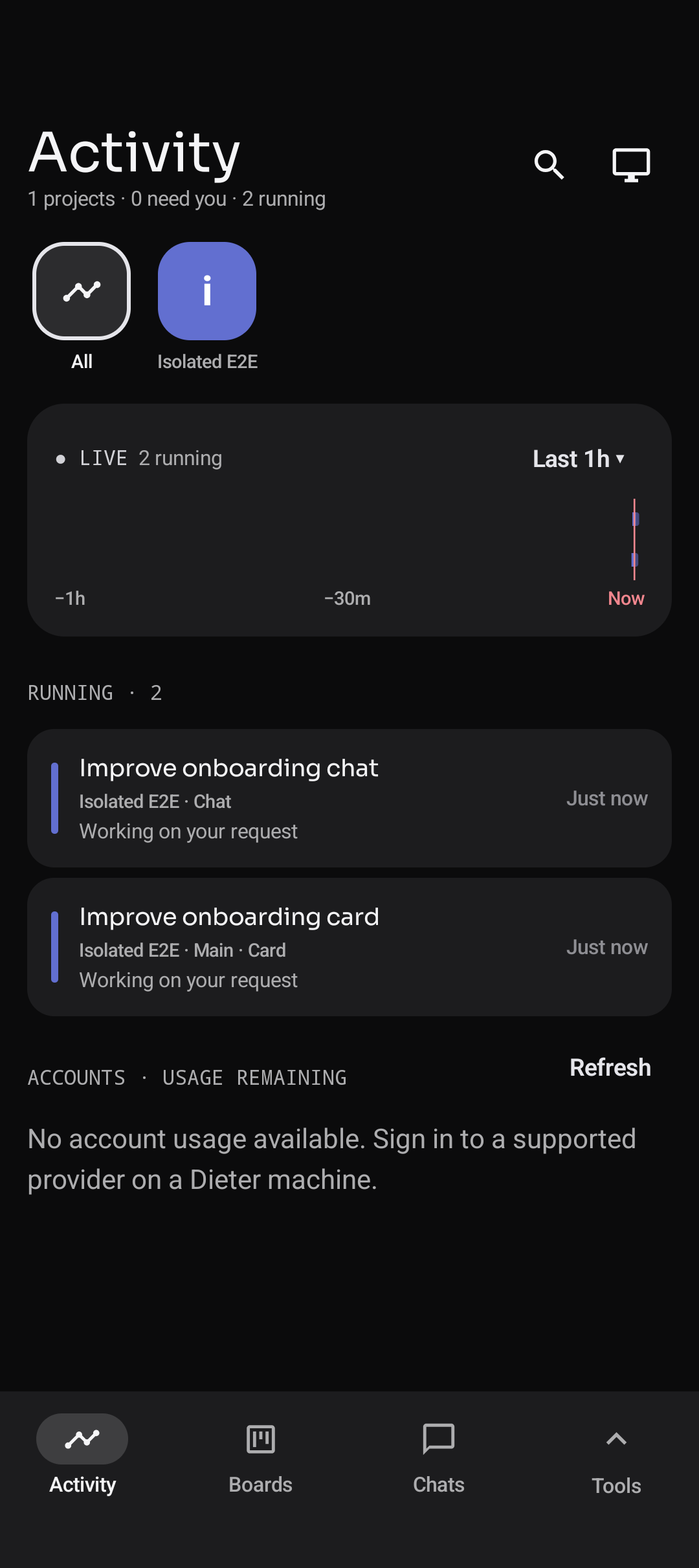
Activity is the Android starting point. It brings task and chat activity together so you can find recent work without first choosing a board. The bottom navigation keeps Boards, Chats, and Tools nearby.
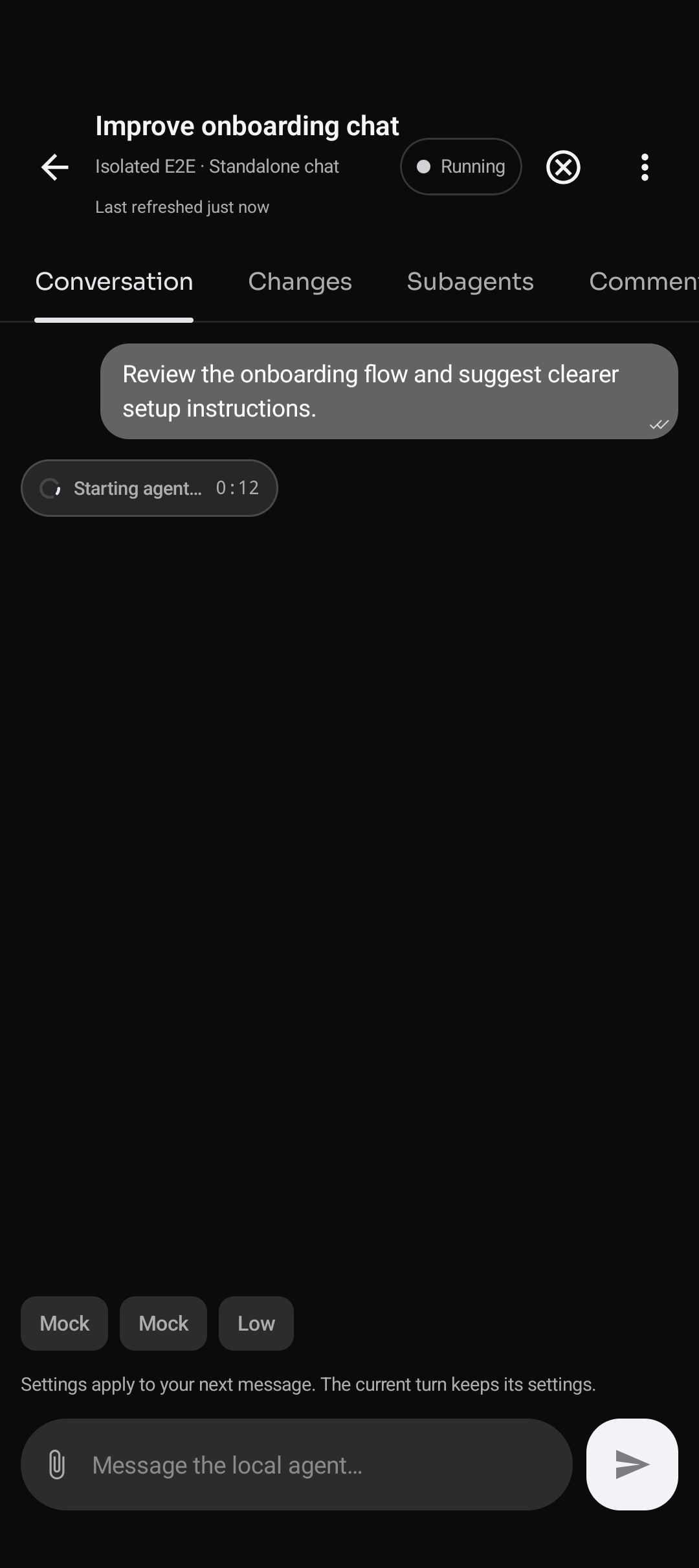
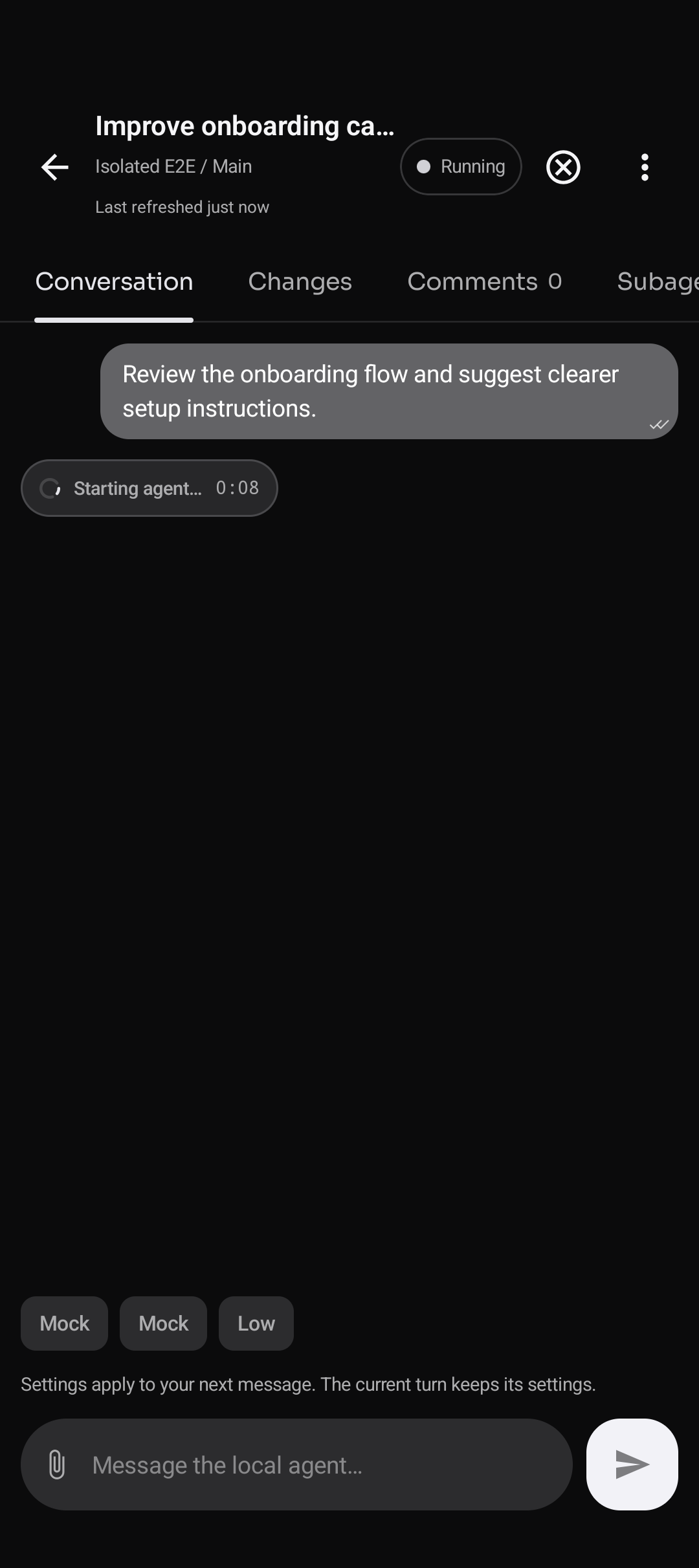
A standalone chat stays separate from the board. A task conversation also exposes its Changes, Comments, and Subagents. Messages sent during an active turn join its queue; closing the app leaves the host working.
Know where the work runs
Open Tools → Machines to inspect enrolled hosts and their availability. Clients check compatibility before connecting and reject a mismatched application contract. The fixture below also includes an intentionally incompatible host.
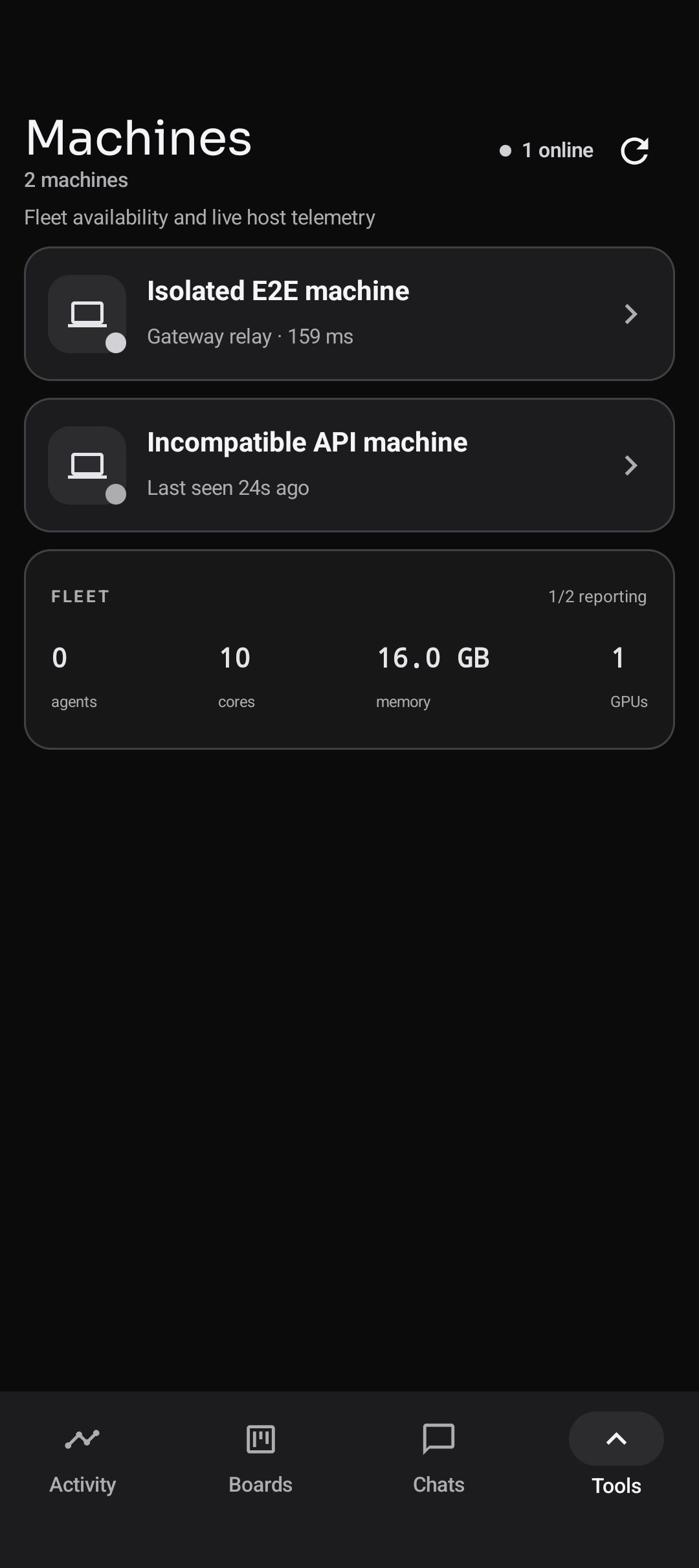
Open a compatible host to inspect its route and live CPU, memory, and supported GPU telemetry. These values describe the host, not the phone displaying them.
Connect more machines → · Use a remote screen →
Try it with your project
Follow the installation guide , then run your first task . The screenshots use demo data; your available models, tools, and machine capabilities come from your own hosts.