
Conversation workspace
Read the result, inspect changes, and keep the running tools beside the conversation.
The Mac conversation workspace opens files, web pages, terminals, changes, and registered processes beside the chat. Android offers project files and machine tools through Tools, alongside its native conversations.
Enable it first: On Mac, open Settings → Experimental → Show the workspace side panel. The panel is off by default. The Files screenshot below uses the main project workspace and leaves this panel disabled.
Open the result
Click a file or web link in a Mac conversation to open the right pane. Markdown uses the native rich editor; code opens with syntax highlighting and linked line numbers; images support zoom; PDFs use PDFKit. Web URLs open with browser navigation and an Open in default browser action.
Files are read from the conversation’s actual machine and workspace. Remote paths are not treated as files on your Mac. Use Download or Save a Copy to bring one locally. Local files also offer Open in and Show in Finder.
Agents can explicitly present a deliverable:
dieter card present CARD_ID --path docs/plan.md --title "Implementation plan"
dieter card present CARD_ID --path src/main.go --line 42
dieter chat present CHAT_ID --url https://example.com
Presentation opens or focuses a native content tab. It does not wake an agent or
prove that somebody has read it. A file must be within the conversation workspace,
regular, outside .git, and no larger than 5 MiB; symlink escapes are rejected.
Browse project files
A project’s Files surface works independently of the conversation side panel. Choose the checkout to browse, then open a file in the main workspace. This is also where shared project-directory conversations expose their Git changes.
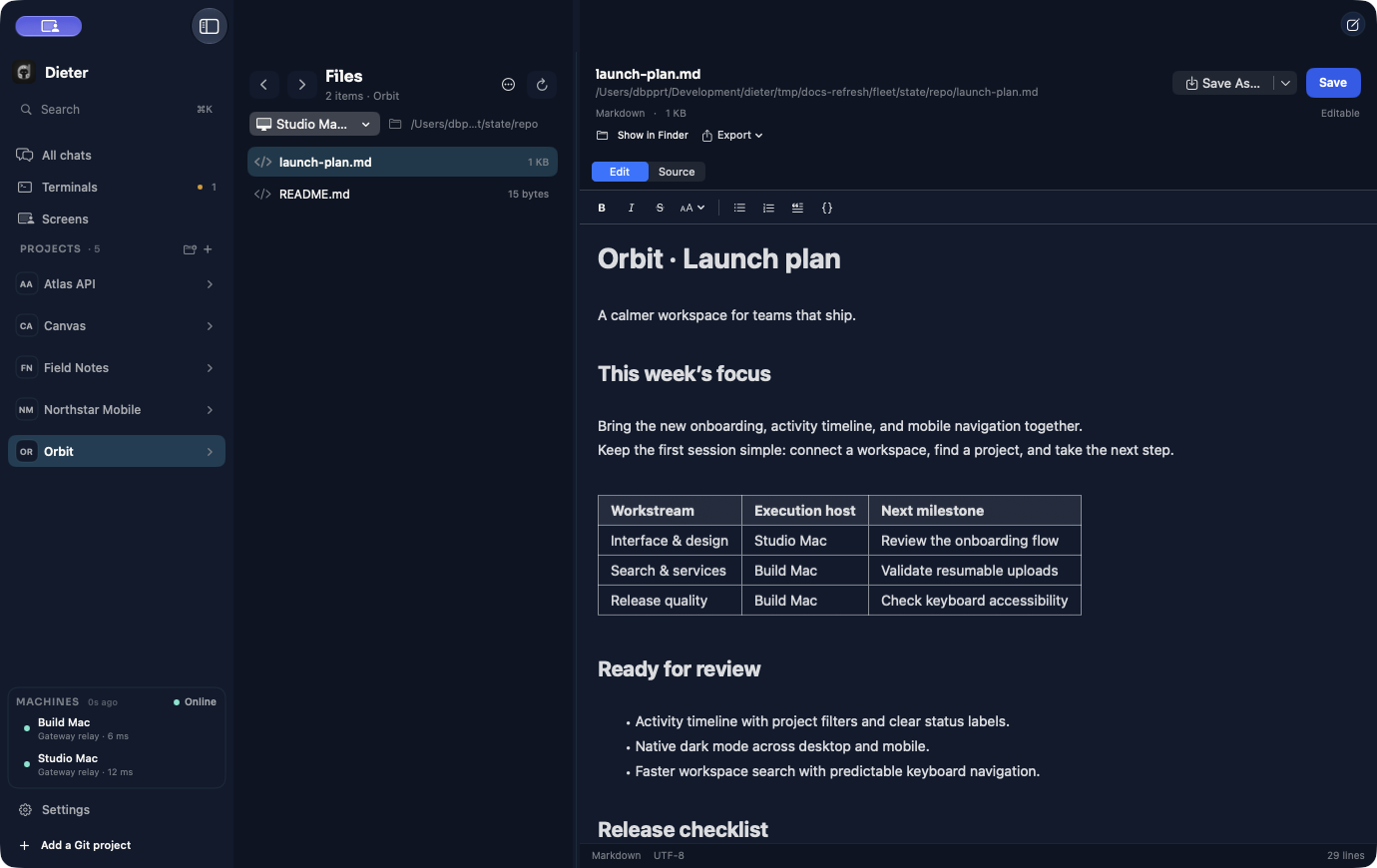
Edit Markdown
Edit · Source switches between native rich editing and the Markdown source. Both use the same draft and a separate Save action. Saves check the file revision; a concurrent change preserves your edits and reports a conflict.
Mermaid and Vega/Vega-Lite fences render locally. Click a diagram to edit its source, then leave the block to render it again. Rendering libraries are bundled; external datasets, scripts, and images are not fetched by the diagram renderer.
Use Export PDF… or Export HTML… to share the current draft, including its rendered diagrams. PDF uses light A4 pages; HTML is standalone. Copy as Rich Text and Copy as Markdown work for a selection or the whole document.
Inspect Git changes
New-worktree conversations own their Changes view. For project-directory work, open the project’s Files → Changes. The same file can appear in both Staged and Changes when only part of its edits is staged.
dieter workspace changes WORKTREE_CARD_ID
dieter workspace changes --project PROJECT_ID
dieter workspace diff --project PROJECT_ID --section unstaged --path src/main.go
Mutations use the current changeset revision to reject stale edits. Review staged content before committing; committing everything is a separate, explicit choice.
Follow processes
An agent can start a build or server with start_background_process. It appears
in that conversation’s Processes tab, with running/exit state and separate
bounded stdout and stderr. CLI equivalents are:
dieter remote exec --card CARD_ID --detach -- npm run dev
dieter remote list --card CARD_ID
dieter remote --help
Commands use exact argv without a shell unless one is explicitly requested. Leaving the tab or ending a turn does not stop the process. Exit, timeout, explicit Stop, or daemon shutdown ends it. Processes and terminal sessions have different lifecycles; see Terminals & automation .
Capture an idea on Mac
Choose Capture task in the expanded Dieter Island and drag a screen region. The capture opens in Quick Task with project, board, and agent selection. Supported browsers can contribute their current page URL; you can edit it. Draw, highlight, or add arrows in the attachment markup editor before adding or running the task. Escape cancels capture.
Browser context may require Automation or Accessibility access. Screen capture requires Screen Recording. Temporary capture files are removed after attachment import. See the product tour for native screenshots.